
Track application status
Understand dashboard applications, status badges, tasks, notifications, journey events, and what to do when a status changes.
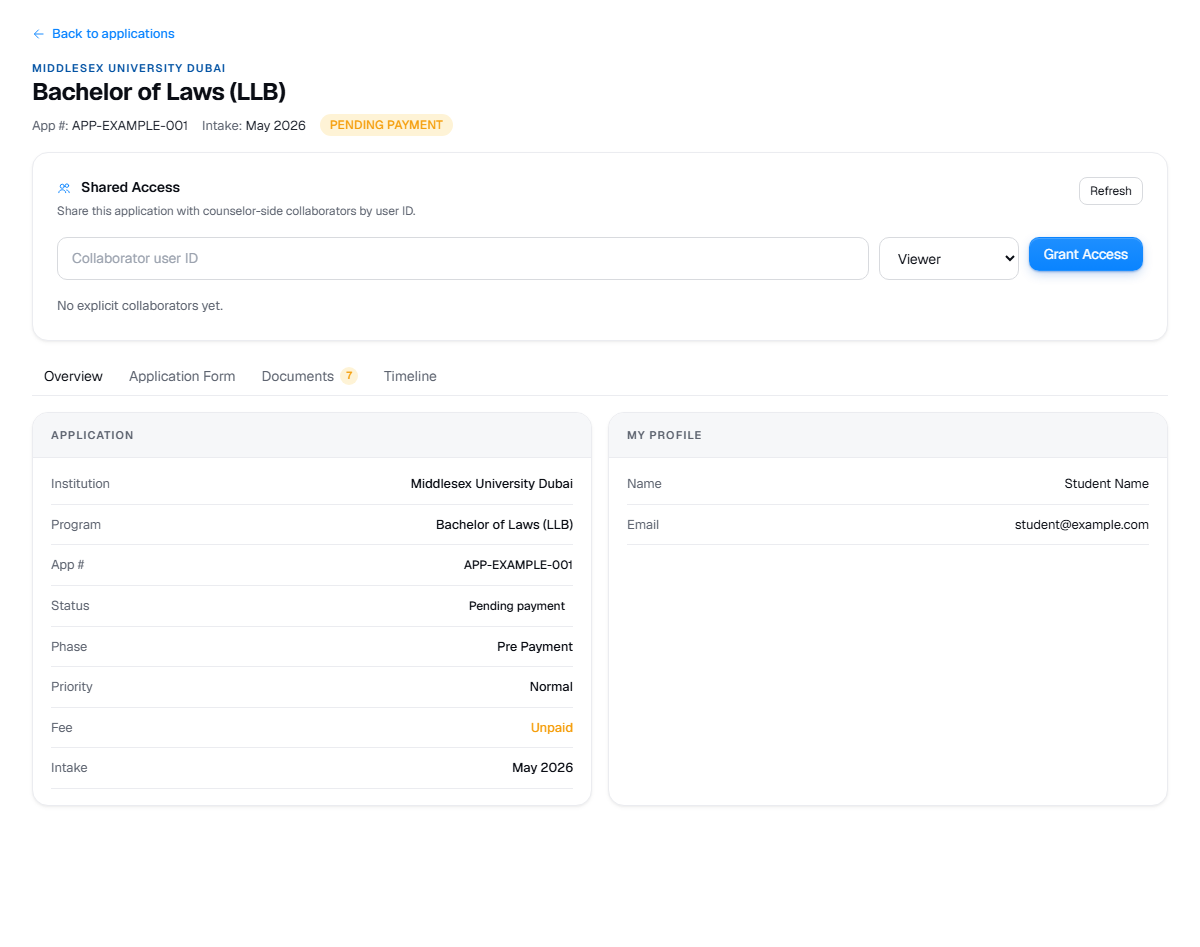
Live product screen
This visual uses the current UniGeni.ai route instead of a mockup.
Capture source
Use the source URL when this screenshot needs to be refreshed after a UI release.
Follow the workflow
Open Dashboard > Applications
The applications page lists submitted and active applications. Use the application detail page for requirements and timeline detail.
Open applicationsRead the status badge
Statuses can represent draft, applied, document review, offer, accepted, or follow-up states. Treat the badge as the current workflow state.
Complete assigned tasks
Dashboard tasks may ask for missing documents, requirement follow-up, or profile fixes. Completing tasks reduces application stalls.
Open tasksCheck notifications
Notifications are not fabricated fallback rows; if the inbox is empty, there may simply be no current update.
Open notifications
Was this guide useful?
Related guides
Submit an application
Choose a programme, confirm the institution and intake, review details, and submit only when your profile and documents are ready.
Upload documents
Prepare and upload transcripts, passport scans, English certificates, payment receipts, and application-specific requirement files.
Work with counsellor support
Understand how students and counsellors collaborate on shortlist review, document review, follow-up tasks, notes, and application readiness.