
Manage account settings
Update language preferences, reset onboarding, understand account export and deletion routes, and keep sign-in details current.
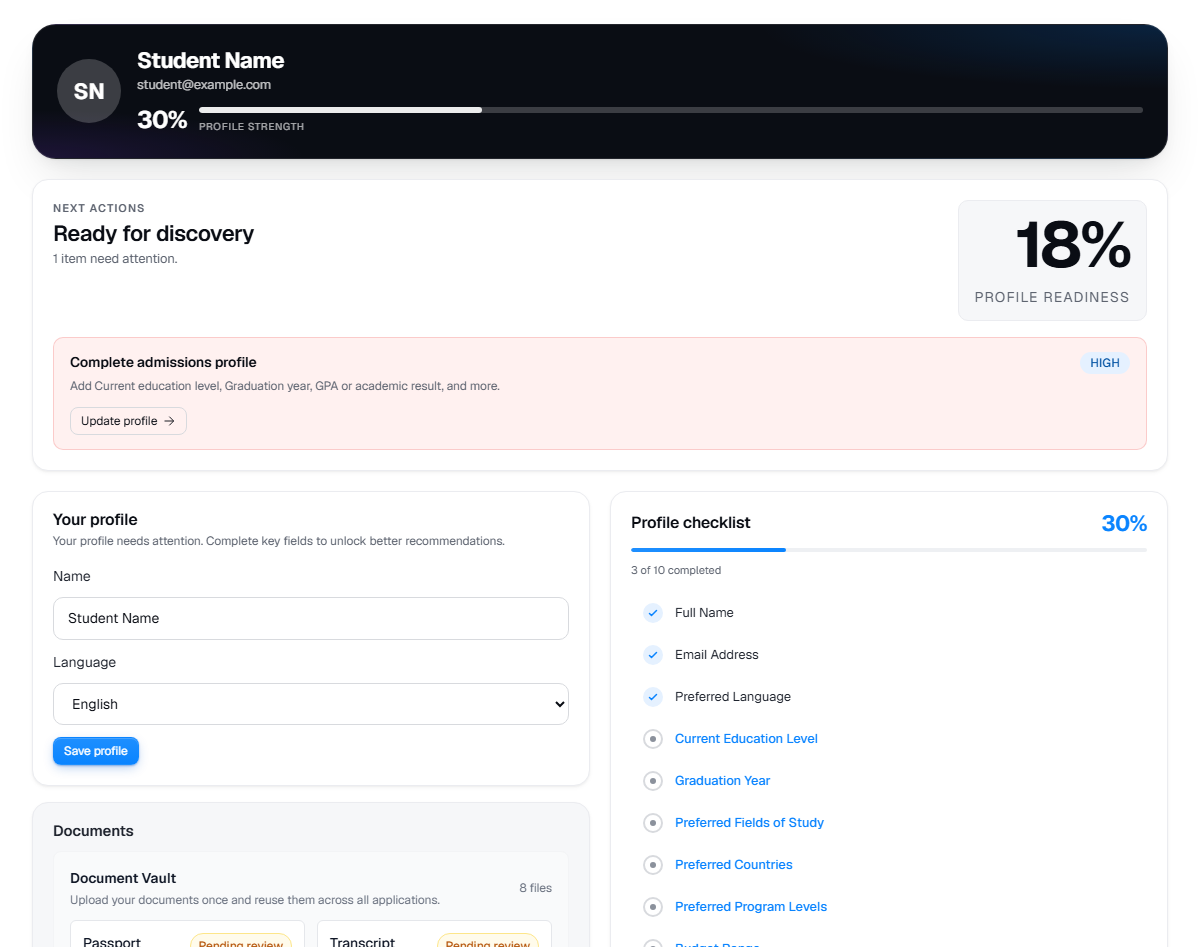
Live product screen
This visual uses the current UniGeni.ai route instead of a mockup.
Capture source
Use the source URL when this screenshot needs to be refreshed after a UI release.
Follow the workflow
Use Dashboard > Profile for student account basics
Students can update full name, preferred language, study profile fields, document vault, and onboarding preferences from the profile page.
Open profileUse counsellor settings for counsellor workspace preferences
Counsellors have a dedicated settings page inside the counsellor portal.
Open counsellor settingsUse privacy routes for export or deletion APIs
Data export and delete account APIs exist behind authenticated routes. Read privacy terms before requesting deletion.
Read privacy
Was this guide useful?
Related guides
Complete your student profile
Build a stronger profile by adding your name, fields of study, education level, graduation year, and academic results.
Student FAQ
Quick answers for students about profiles, programmes, documents, eligibility, applications, statuses, counsellors, and scholarships.
Work with counsellor support
Understand how students and counsellors collaborate on shortlist review, document review, follow-up tasks, notes, and application readiness.